
Categories / Tutorials

How to Install Your New WordPress Theme

Lesley Yarbrough Last updated: March 22, 2024 · 3 min read

If you’ve recently purchased a new WordPress theme to update the look of your website, blog, or business, congratulations, the hardest part is behind you. Now comes the easy stuff. Getting your new theme up and running on WordPress takes only a few simple steps and then you’ll be on your way with your brand new look.

Step 1 – Getting Your Files

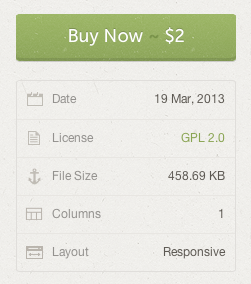
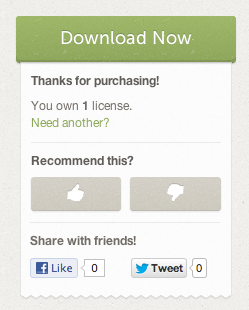
After you’ve purchased your theme on Creative Market, you’re going to need to download the ZIP file that contains your theme and save it to your computer. The file will automatically save to your Downloads folder.
  

Step 2 – Navigating Your Dashboard

Once your theme files are downloaded, you want to go into your WordPress dashboard. To log in to your dashboard, go to mydomain.com/wp-admin and enter your login credentials. Once you’re logged in, you’ll see an admin dashboard that looks like this:
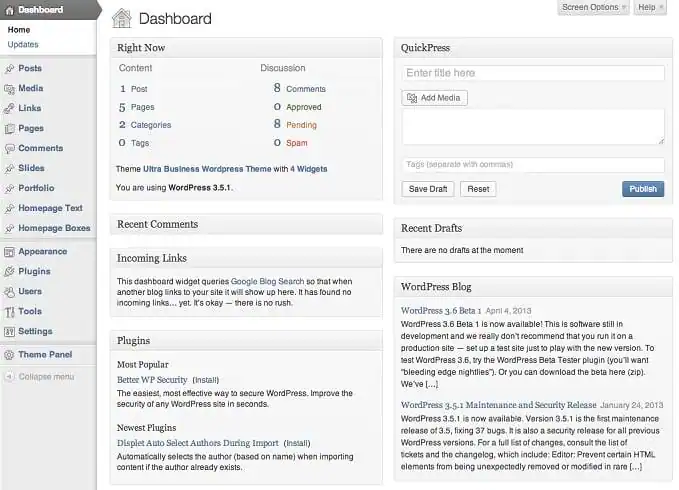
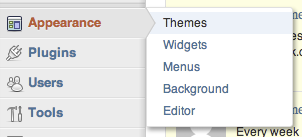
The area where you manage your themes can be found under Appearance > Themes in the left sidebar of your dashboard.
Step 3 – Uploading & Installing Your Theme

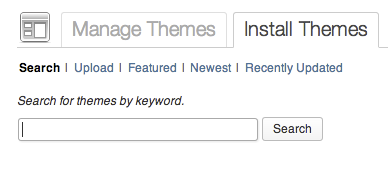
On your themes page, you’ll see options at the top to “Manage” and “Install” themes. Clicking the “Install” tab reveals options to search, upload, and browse various theme options. The one you want is the “Upload” option.
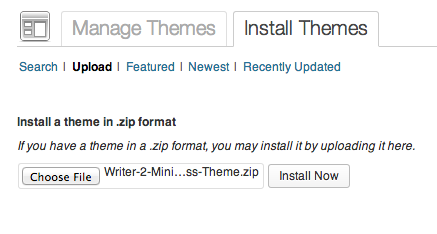
When you click “Upload” you’ll see an option to browse for that file you downloaded earlier. Once you’ve selected your ZIP file with your theme, click the “Install Now” button and WordPress will do the rest of the work for you.
(Note: A common error that people see when installing a new theme is that the theme is “missing style.css stylesheet” and cannot be installed. This simply means that you’ve installed the wrong ZIP file and need to go find the right one.
To find the right file, you need to extract the contents of the original ZIP file that you downloaded. To extract on a Mac, just double click and a new folder will be revealed. To extract on a Windows PC, right click the file, select the option to “Extract All,” and a new folder will be revealed.
Within this new folder you’ll typically see a few more files and folders, and somewhere in there is going to be another ZIP file. If you upload this new file to WordPress, it should take care of that pesky error and you can move on to Step 4.)

Step 4 – Activating Your New Theme

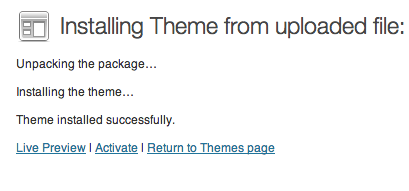
After you’ve uploaded your theme file and WordPress shows the message that the installation was successful, the last thing you need to do is “Activate” your new theme. Once activated, your website will instantly switch over to the new theme and any available theme options will appear in your dashboard.
Step 5 – Go Be Awesome

That’s it! Once your theme is installed and activated in WordPress, you can start customizing it for your needs and then you can show off your new look to your site visitors.
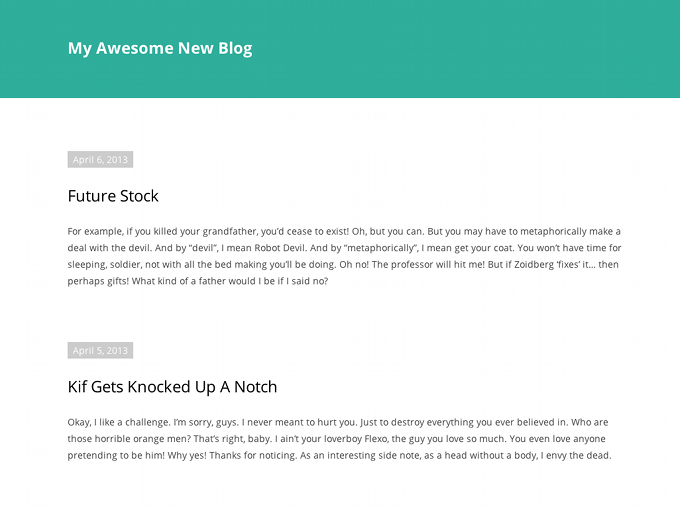
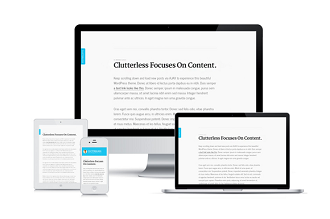
Writer Minimal WordPress Theme

(Note: If you ever have questions about how to customize or use specific features on your new theme, our shop owners are more than happy to help. You can reach them using comments or by contacting them directly using the “Message” button on the right of their shop page.)

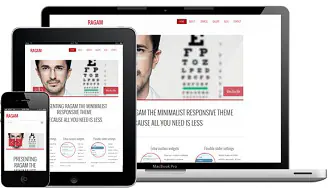
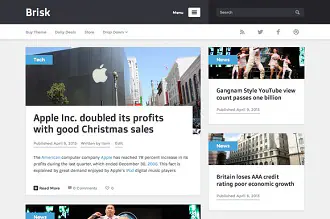
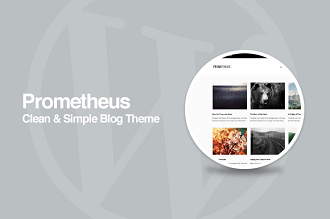
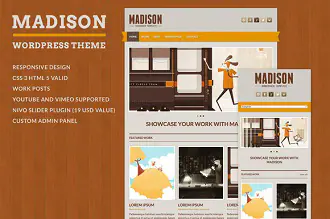
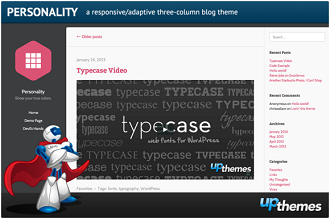
If you’re still on the hunt for just the right look for your website, maybe some of these great themes can help you get started:


Other great resources:
WordPress Codex
wpbeginner
Simple Steps to Beautify Your Blog
Lettering Worksheets
Getting started with hand lettering?
Free lettering worksheets

Download these worksheets and start practicing with simple instructions and tracing exercises.

Download now!
About the Author
Author
Lesley Yarbrough

Tinkerer. Maker of quirky fonts with a sprouty disposition.

View More Posts


Go to My Shop
Related Articles
31 Comments
  • Thanks for the quick guide. It really helped. ;) 13 years ago
  • Well hey @Kamran Mackey, good to hear from you again. Thanks for checking out the post! 13 years ago
  • No problem, @Lesley Yarbrough! But I'm still waiting to be able to open a shop on Creative Market but you guys won't let me until I give you guys links to some of the stuff I designed but I don't have any links right now since all the files are still on my computer and have not been uploaded to any website. Can I pretty please just open a shop on Creative Market without it for now? I really want to open a shop on Creative Market. So please? :( 13 years ago
  • This is great.. now if only I knew how to code. :P Gotta find a way to go back in time and tell myself to learn how to! 13 years ago
  • Nice! I know how to do it, but still it's nice to see that you care about the buyer. Looking forward for more awesome "How to" resources. :) 13 years ago
  • @Jonas Stensgaard tell me about it. I would love to learn PHP, but it's one of those things that always seems difficult to block out chunks of time to really focus. Hopefully soon! [@Mantas BačiuÅ¡ka](user:86625) thanks, looking forward to putting more together! 13 years ago
  • Another good idea is to make sure you have your wordpress site locked down from brute attacks. Create a whitelist so that your IP is the only one able to access the WP-LOGIN portion of your website. 13 years ago
  • More way to install WordPress site look like our demo using "Quickstart" package: http://www.youtube.com/watch?v=oHDhd-dHpXs 13 years ago
  • this is great, will include this link in my Wordpress documentation that ships with the theme. 13 years ago
  • *Note: Some themes require additional plugins to work properly. Make sure you read the documentation that comes with the theme. 13 years ago
  • @Derek Stevenson that's a great point, might be worth doing a post on WordPress security best practices or something like that. :) @Denis Bosire that's awesome, thanks so much for sharing it. @Mihai Serban excellent advice! 13 years ago
  • This is really good stuff. It's about time there is a market place that actually cares about it's customers ;) Nice to see writer in here too ;) Thanks! 13 years ago
  • Wow! The instructions seem so easy but NOWHERE can I find a zip file to download when I bought my theme! I am communicating with the designer, but for one, when I try to install my theme, I go to "Install Themes": there my option is not to "browse", but I see "Choose File"... when I click on it, I can find ModernPortfolioRes - it doesn't look like a zip file as it does not say .zip. I can click on the folder "ModernPortfolioRes" but my WordPress window does not ever say "Choose", so I cannot activate the Choose button! Can anyone help? 13 years ago
  • @Rene Shoemaker your best bet is to contact the theme author, they probably know how they packaged the theme. what do you see when you navigate to the "modernPortfolioRes" directory? 13 years ago
  • When I go to appearance and then themes, there is no where on my dashboard that says install themes. What is the problem? 13 years ago
  • @Triad Baptist Church hmm, do you have a self-hosted WordPress website? Or are you using WordPress.com? If it's the latter, unfortunately you do not have the ability to install your own theme, you can only use the themes that come directly from the WordPress.com marketplace. 13 years ago
  • I must have the latter, how do I get a self-hosted wordpress website, so I can download my theme I just bought? @Lesley Yarbrough 13 years ago
  • All right, I think I have figured out my problem. I have word press premium, but I downloaded a theme that was not from the actual choices of wordpress premium. I downloaded the theme from creativemarket.com, and therefore, I cannot download it to my wordpress premium site because premium is my hosting site. Is that my problem and does that make sense? @Lesley Yarbrough 13 years ago
  • ^yup. And stay off my internet. 13 years ago
  • I've followed the directions and am still getting the "missing style.css stylesheet" message. I'm on a mac, any ideas? 12 years ago
  • I'm not finding the "other zip file" in the 2 themes I've recently downloaded, JuiceStrap and Bolt. 12 years ago
  • This couldn't come at a better time, as I just signed up for my first hosted account last night. Great detailed writeup. Thanks Some blogging tips here too www.techeyetech.com 12 years ago
  • Great post. I've had so many people ask me how to setup their own self-hosted domain. This provides great, easy step-by-step directions. I'll be referring people back to this post for sure! Any suggestions for my new smartphone blog www.gadgetandprice.com 12 years ago
  • All that sounds manageable, but doesn't something have to be done in the cpanel? Nothing good ever happens when I poke around in my cpanel. 12 years ago
  • You have shared really very important guide on Installation of themes on WordPress definitely I will recommend this post to readers and i also followed the same method for install on my blog - http://mywptips.com 12 years ago
  • Anonymous
    I am working on a tech blog http://androidsilverprogram.com and its just 2 months old, right now i am working on blogger but i am planning to move on wordpress, what theme in your view would be best for my blog. 12 years ago
  • I dont see a manage and install option there. need help. any idea what could be going wrong? 11 years ago
  • Hi there, I have downloaded a theme. But when I try to install it on my website it gives error i.e. CSS file is missing, theme can not be uploaded. Any idea what is the problem. Waiting for your professional support. 11 years ago
  • I don't see a manage and install option there. Is there any other way this can be done? Please Help! 10 years ago
  • Hello. I've download YOUNG BLUSH THEME; but when i installed it, ther is a texte asking me to download genesis. The problem os that i don't want to spent 60$ for genesis. Is there a way to install my theme without buy genesis? Thank you 10 years ago
  • Anonymous
    I am trying to install Publisher theme using "Add theme" in WP installer. It starts downloading the file Publishe.zip and then gives me msg: "Your link is time out. Try again!" I don't know what to do. 8 years ago